Saturday, February 13, 2016

Digital Learning Day Blog Hop!


Digital Learning Day 2016

Why Should You Try Something New? Because Your Students Will Thank You. 

My students thank me all the time for the new “stuff” we are doing this year. Go ahead--take the plunge! Believe me, if you have access to any sort of technology (even one device), then do it. That one tablet or laptop can open up a window to a universe of instructional opportunities. Your students will want to get to that tech center.  

Digital Learning Day, February 17, 2016, is ultimately about bringing equal opportunity to our classrooms, regardless of location or socioeconomic status. It is about the importance of having access to Wi-Fi and up-to-date technology in our schools. Many schools have technology that is not working or that is out-of-date. State and local governments are now focusing on getting it all fixed so that our school children can succeed in the 21st century.


Here's the challenge--On February 17, 2016, try a new lesson that focuses on discovery, analysis, and exploration. Give your students the gift of a new opportunity by using Google Classroom, MS OneDrive, or an App. And don’t forget to share what you are doing in your classroom on social media to celebrate Digital Learning Day with #futureready. To help you get started, we’ve teamed up to share an amazing selection of blog posts and classroom activities that are designed to propel you and your students into your digital learning adventure.


Friday, February 12, 2016

Happy Digital Learning Day


If there's one thing that I love, it's getting all techy and nerdy. Seriously. I obsess over all things fun, interactive, digital and new. I am always on the hunt for new ways to engage my students in learning. I want to share some easy tips that you can use to get your kids using digital learning tools as well so that we can make the day fun and exciting for everyone!


An easy way to add digital elements to your teaching is by using games or apps that will give you instant formative assessment data quickly while also putting technology into the hands of your students.

Some sites/apps that I love using with my 5th graders are...

Kahoot-This website is great! You can use it on computers, tablets, or phones. You can search for public games or you can create your own custom games. We've used these to review PBIS expectations, prepare for a math test, review classroom rules and procedures, and even change up our exit ticket responses at the end of math. The students love playing Kahoot. I'll definitely be using it to help us prepare for the OAKS science test this spring.

Quizziz-This site is similar to Kahoot but it's less teacher-directed. That has its benefits and disadvantages. It's great to use for homework or independent work time. 

Plickers-Do you have a hard time using technology because you don't have a lot of it to work with? This site is right for you. Students are given cards with custom codes on them. You just need one device (it can be your cell phone) and you can get instant feedback on students responses. They think it's super fun!

EdPuzzle-I love this site because you can search tons and tons of videos and embed quizzes into them! This is a fun way to change up your instruction so that you can still assess student learning but it feels a lot more fun for the students.


 I love doing this! I use a few resources regularly for this. I'll have my students watch a video from Scholastic Study Jams before I teach a concept. This gives them background knowledge and boosts participation in the content. I have them all watch it during a designated period of the day.

I also use videos to preteach math content. This is helpful because the students are ready to start practicing right away during our math block. Less time is spent learning the procedure and more time is spent with teacher guidance while practicing the procedure. I find many of these videos on YouTube or Khan Academy. 


Love partner work but hate the noisy, off task chaos?! This is for you! I love using digital partnering. This gets students typing and working instead of hanging out and wasting time. 

Right now, I have my gifted students working on a project with other gifted students across the country! They have digital meetings and are collaborating on a shared document! It's super fun and gets the students really excited! 


I incorporate Google Drive into most of my teaching in one form or another. I have students type their work regularly. I've taught them how to enter graphics, create flow charts, create tables, etc. Anything can be turned into a Google Docs lesson. You just need to keep that end game in mind!

I also have a few digital lessons that are implemented with Google Drive. I love using these because it reduces paper waste in my school...which is also friendly for our budget. Plus, the typed work is easier to read than the papers that my students usually turn in. The change of pace keeps students engaged and ready to learn (even if they might flip the tab to YouTube while I'm not looking...yes...I'm not naive...). 

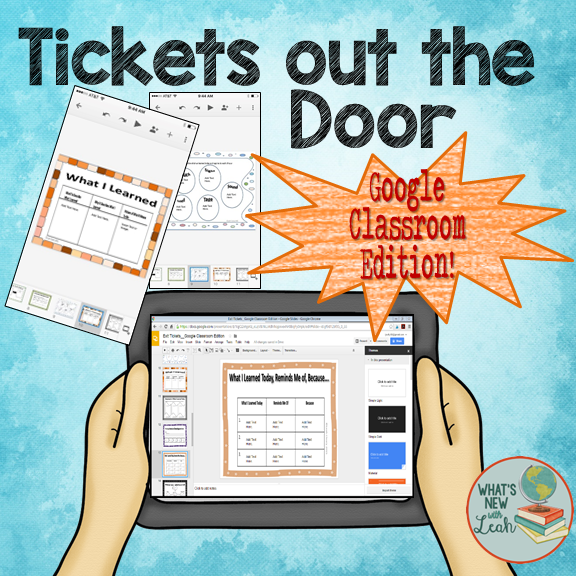
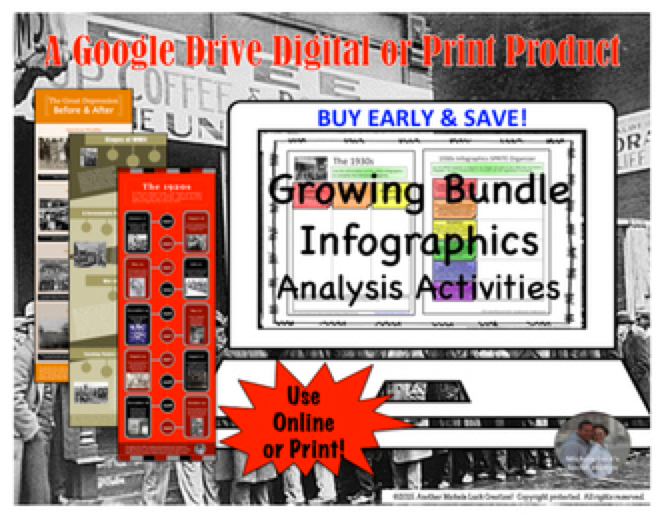
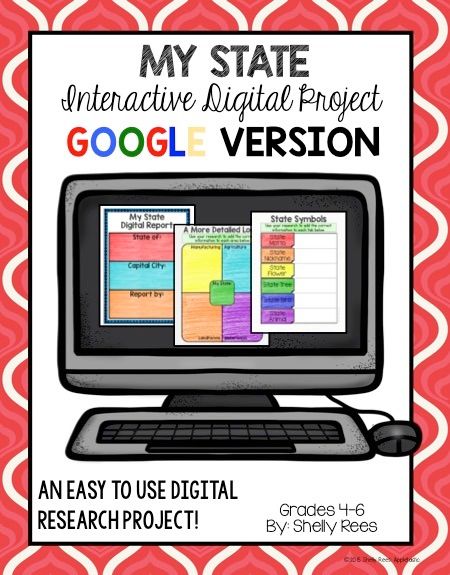
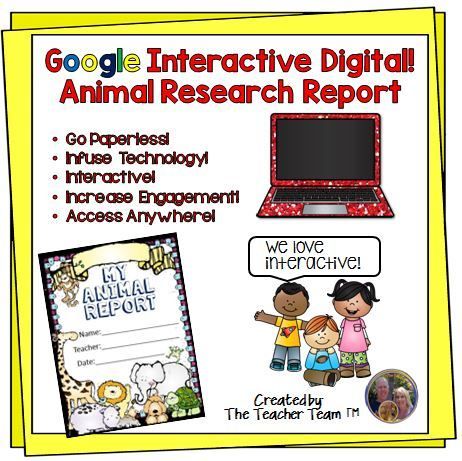
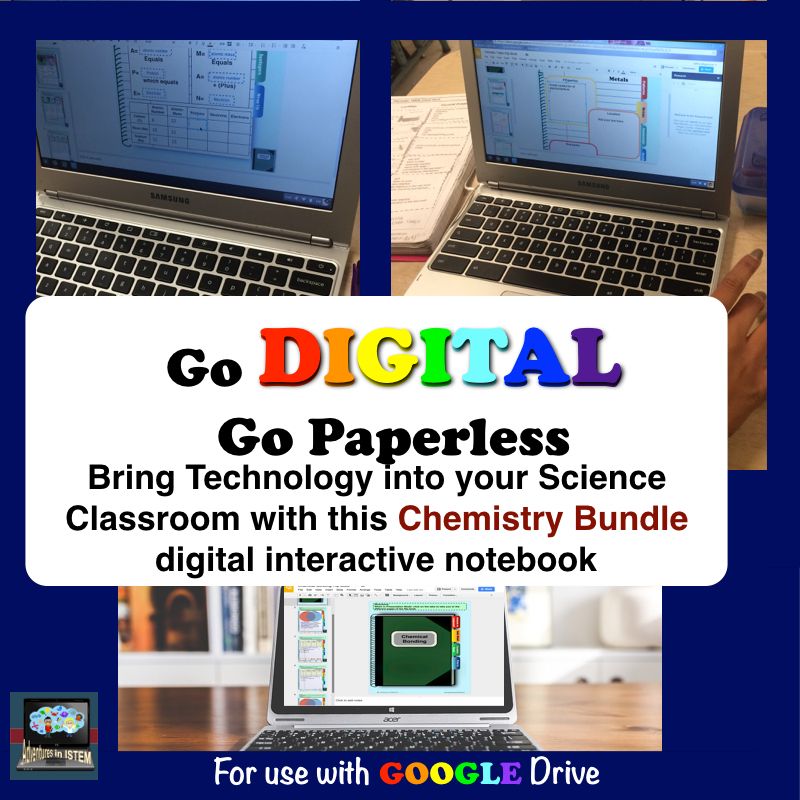
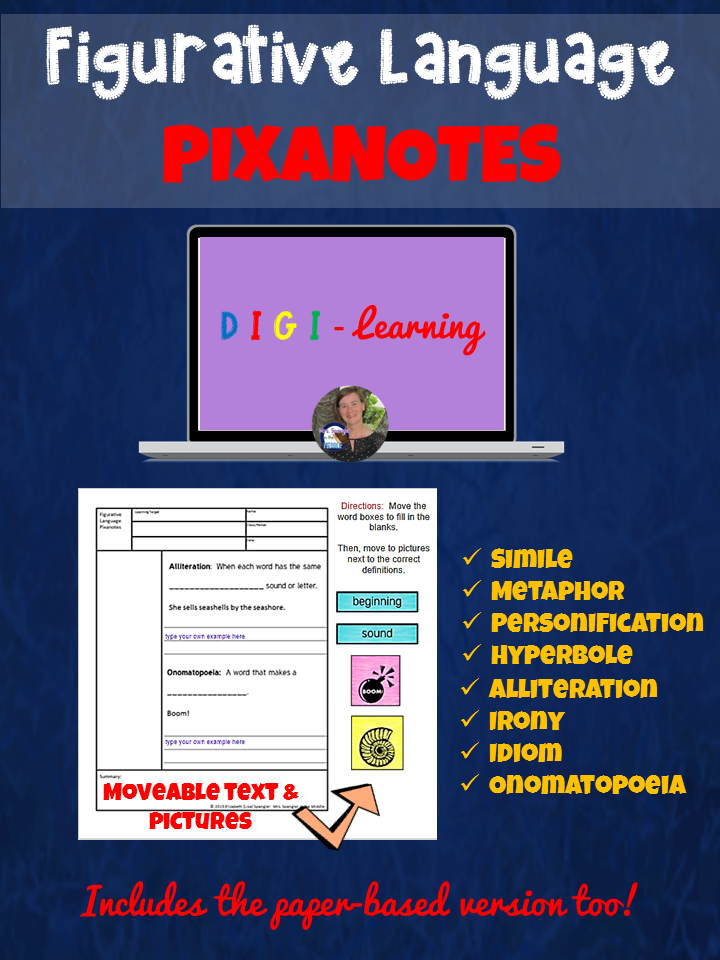
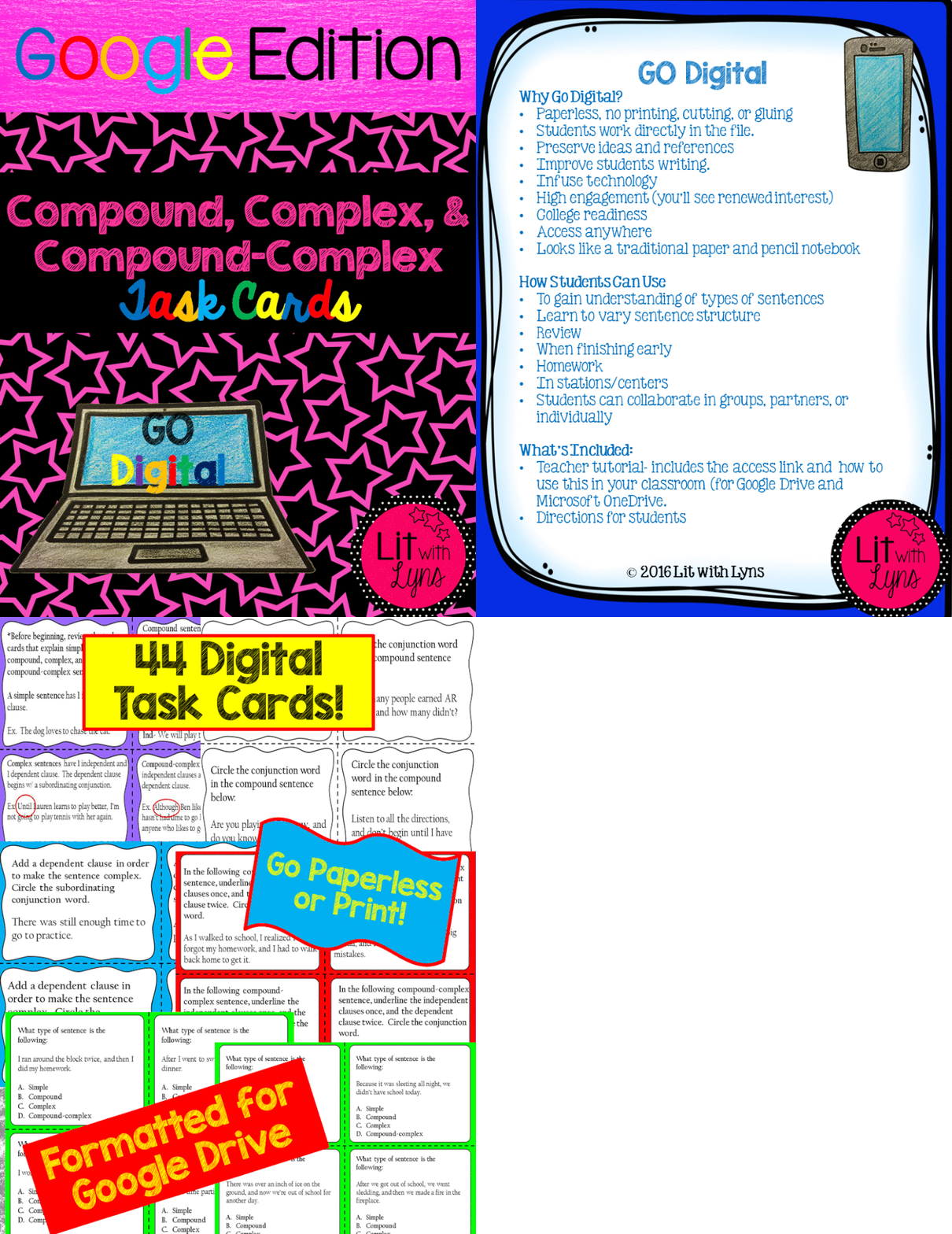
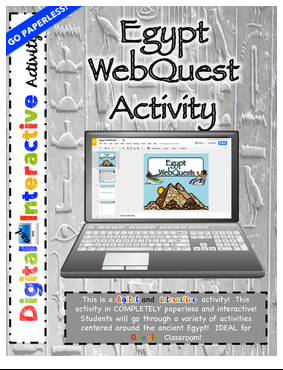
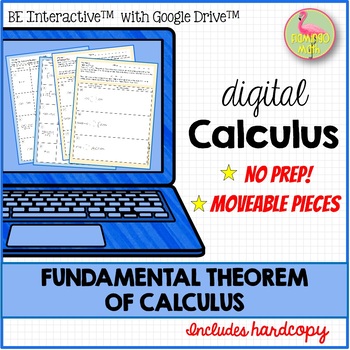
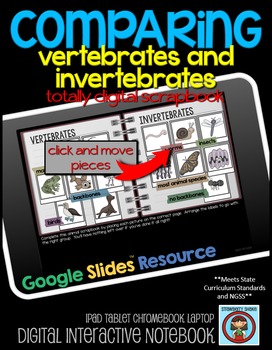
You can check out some fun Google Drive resources here. These products will make it super easy to put some digital learning into place for digital learning day!


I brought a volunteer in a few months ago to do some coding with my class. Here's the truth...I could've started them on code.org myself but it's way more fun when there's a new person in the room sharing it with you. They need fresh faces. I'm not offended.

However, even if you don't have time to set up a volunteer, you can do code.org all by yourself. It's super easy. You just need some computers and an hour of time. The kids will love it. 

This is definitely the easiest, most low-prep way to go!

Hopefully these ideas help you transition into digital learning easily and bring some techy enjoyment into your day!!


xoxo


Saturday, February 6, 2016

WOAH-Teacher Fashion JACKPOT!


Oh my gosh! I am seriously obsessing over something right now! I'm obsessing so hard that I'm just going to get right into it and pretend that I haven't been neglecting you by not pushing out great blog content lately.
I am a sucker for fashion and trends. I mean...a total sucker. Those people who wear the same thing year after year after year...yea...that's not me! What about you? Do you like to mix up your wardrobe or are you a simple kind of person?

I was just introduced to LuLaRoe by a friend of mine (accidentally) and I cannot get enough. She sent me a pair of conversation heart leggings. What teacher doesn't want to wear conversation hearts at the Valentine's Day party?? I could've picked any pattern that I wanted from her and I chose to get all love-filled and teacher-nerdy. What would have picked? 


Let me explain something to you. These are the most comfortable leggings I have ever put on. I mean ever. In my entire life. I actually could barely even tell that I was wearing pants. Plus, they make all my nerdy teacher clothing dreams come true. What more could I want.

Now, this has skyrocketed me into a full-blown obsession. I have to get more LuLaRoe ASAP. In fact, I have plans to go for a little LuLaRoe haul on payday! I want some of their dresses and tops...and of course...more leggings. 

Now, it's not all nerd-tacular. There's plenty of high-fashion, super adorable yet comfortable work wear. I love their looks!


Have you ever heard of LuLaRoe? Ever worn anything of theirs? What did you think??


Sunday, January 10, 2016

Using Google Drive in the Classroom - FAQ's


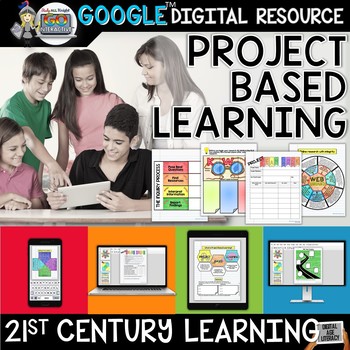
Keep Calm and Teach 5th Grade is moving into the digital age with a brand new product line. I have started to create a set of products that are fully-integrated with Google Drive and Microsoft One Drive. 

Are you curious about what these products are?

What Are Google Edition Products?

Google Edition products are:
  • Fully interactive
    • Just like a regular interactive notebook or flip book but the pieces are fully digital. You'll be able to manipulate without the cutting and pasting.
  • Full-color
  • No prep
  • Rigorous, engaging, technology-rich projects
  • Also compatible with Microsoft One Drive
Why Should You Work with Google Edition Products??


There may be a small learning curve if you're not used to working with digital products with your students. However, it's well worth it as it will reinvigorate your teaching and provide students with the opportunity to learn in a technology-rich environment that provides valuable career and college readiness skills.

Plus, as all schools inevitably will, you'll be one step ahead of the game when your district goes 1:1. 

Some major benefits include:

  • Students become proficient in working with Google Apps
  • Students become more proficient in typing, editing and word processing skills
  • Students are given access to college and career readiness skills on a continual basis. Colleges want students who can interact with word processing and typed documents...not students who can cut, glue and fold like a champ (not to say that that's not a great thing to include for your kids as well...let's stay with a healthy mix of both)
  • No prep. Lose the copy-machine battle and regain your time. 
  • Full color documents maintain student interest and can help with color-coding and brain imprinting when used properly
  • Easy to read (easy to grade)
  • Improve typing skills
  • Work perfectly with a 1:1 classroom or in any computer lab
  • No more lugging heavy notebooks back and forth for grading. All files are saved digitally and accessible from any location as long as you have a computer, phone, or tablet nearby.
  • All changes made by you and the student are saved immediately. You won't have to worry about lost edits or the "he said/she said" argument over school work
How Do I Use a Google Edition Product?

It's pretty simple to get started with a digital product. Once you purchase the product, you'll be given a link to the Google Edition product. 
  1. Click the link to access the digital product
  2. You will be asked if you want to make a copy of the document. YES!
  3. If the option doesn't pop up, here's a video with tips to make a copy of a document.
  4. Once you have a copy, the sharing method will vary depending on if you use Google classroom or not.
  5. If you use Google Classroom, check out this video to see how to share a digital assignment with your students.
  6. If you don't use Google Classroom, you'll want to share the document with each of your students. Here's a video to help you out. 
  7. Once you've shared the document with your students, if they're not using Google Classroom, they'll need to "MAKE A COPY" just like Step #3. If they don't, everyone will start typing into one document and it's going to be a mess. Google Classroom will do this step for you. So, if you're in Google Classroom, you just saved yourself some work!
  8. After they've made a copy of their document, they can share it with you and you will be able to immediately view all of their work. 

Need More Help?

Here, you can find a great tip sheet here for getting started with Google Classroom!

Here's a great Pinterest board full of tips-and-tricks for Google Classroom or Google Drive users!

Here's another great blog post by Danielle Knight with tons of tips for getting things going with Google Drive in your classroom!

What's New With Leah also has a ton of great tips for integrating Google Apps in your teaching!

What Do Google Drive Edition Products Look Like?

I am very happy to give you a a little peak and what things look like in a Google Drive Edition product!

Right now, I have a digital research report and some interactive flip books. Before you go any further, imagine a flip book in your mind. Now, imagine that it's interactive with pieces that you can cut off and paste into the flip book. Ok. It's exactly that but everything is digital.

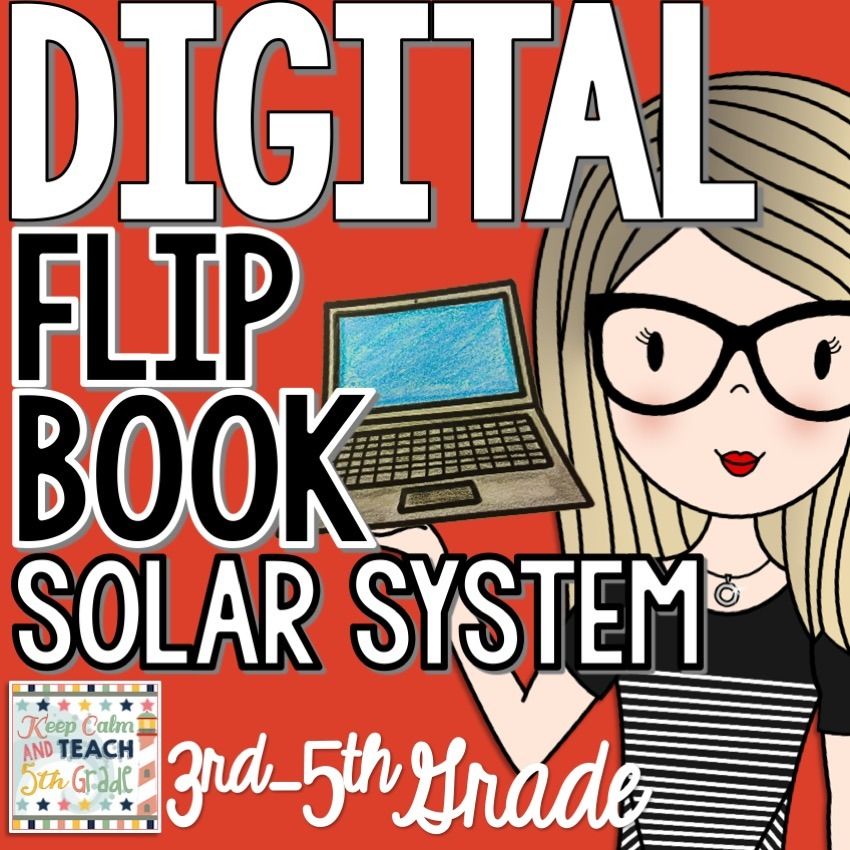
Here's an example from my Solar System Flip Book...


 Everything stacks up neatly to create a colorful, pretty cover image!


The students are able to work in the document and enjoy full-color graphics to make the content more realistic and engaging. 

Where students would typically write notes into a booklet, students are not able to manipulate the text and create digital files to show their learning.

So, those are the basics in getting started with Google Drive products! If you have any questions, please ask me below. I would be more than happy to help you out!!


Friday, January 1, 2016

Currently - January 2016


Wow! It's 2016! Oh my gosh! I had an incredibly amazing year in 2015 and I am hoping that 2016 keeps up with such positive momentum. I have major goals for 2016 and they start TODAY!

Listening:

I recently launched a YouTube channel so I've been spending tons of time watching YouTube tutorials to get the most out of my video editing, lighting, etc. I've learned so much from watching "behind the scenes" videos by my favorite personalities. You can check out my brand new YouTube channel here!

Loving:

In light of starting my YouTube channel, I purchased a new Canon camera over winter break. Hands down, one of the best investments I've ever made. Of course, I also purchased lighting, a microphone etc. Haha. I am so in love with this camera!


Thinking:

Today is the day that I'm venturing out and starting a new line of digital TpT resources! I'm super excited and a little bit apprehensive about the learning curve in changing up my creative style!

Wanting:

Okay, I've been 100 times more productive over vacation than I am on any regular day. Anyone else with me? Can I do this all the time?

Needing:

It's time to get back to reality. I need prepared food soon. Groceries are calling me.

One Little Word:

My word of 2016 is focus. This is going to be my year. I have my focus set on 3 major points for the year and I can't wait to see them all materialize! Thank you so much for being with me on this journey!  Here we go!

Come link up with us and share your Currently for the new year!